Download FurMark
GPU stress test, OpenGL/Vulkan benchmark & burn-in for Windows

FurMark

GPU stress testing, OpenGL/Vulkan benchmarking & burn-in for Windows

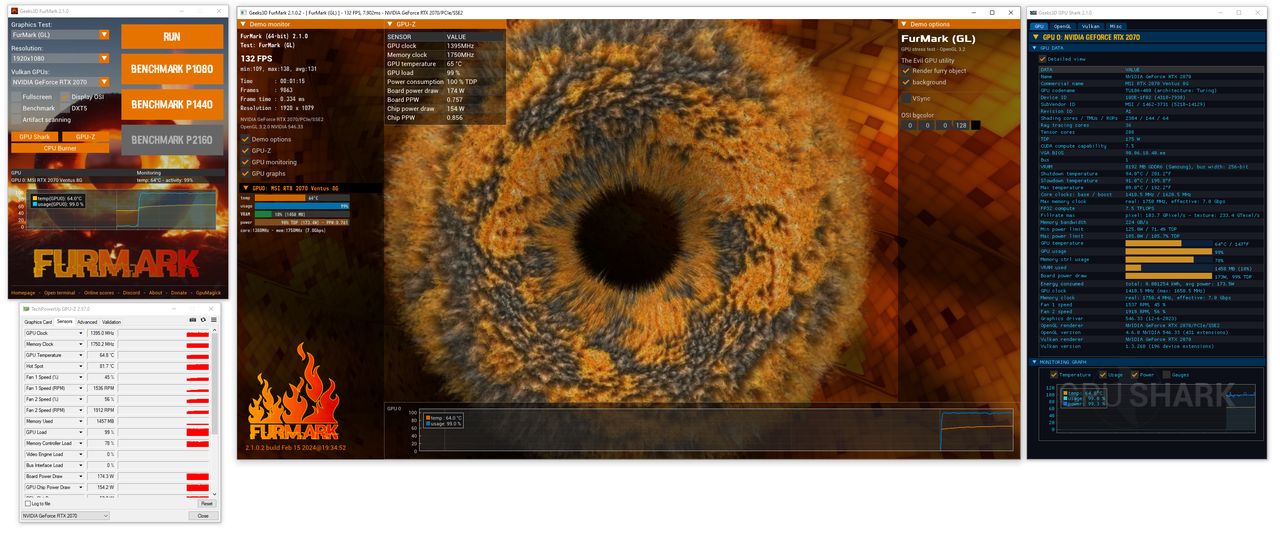
FurMark GPU stress test and benchmark overview

Download

Latest Version

Free download · Compact build · For Windows 10/11

FurMark is a compact Windows utility built to place your graphics card under a sustained, repeatable 3D load. Use it to stress-test GPUs, run OpenGL or Vulkan benchmarks, watch thermals and clocks while the “furry donut” scene runs, and scan for rendering artifacts after tuning or driver updates. It is widely used by enthusiasts, reviewers, and repair techs who need blunt, consistent GPU workouts—not a game-style FPS score alone.

Features

Explore the capabilities that make FurMark a staple for stability checks, thermal validation, and apples-to-apples GPU benchmarking.

Intensive GPU Stress Testing:

  • Drive the GPU with the classic FurMark rendering workload so power draw and heat rise in a controlled, repeatable way.
  • Compare behavior across presets, resolutions, and fullscreen or windowed modes while you watch clocks and fan response.
  • Expose weak cooling, marginal power delivery, or unstable overclocks before those faults show up only in sporadic game crashes.

OpenGL, Vulkan & Benchmark Presets:

  • Switch APIs when available and use consistent resolution targets—such as 1080p, 1440p, and 4K—for fair before/after comparisons.
  • Run timed benchmark passes to record scores under the same settings, ambient temperature, and driver version.
  • Pair FurMark with your favorite overlay or vendor tool so GPU temperature, clocks, and power limits stay visible during the run.

Artifact Scanner & Stability Clues:

  • Watch for texture glitches, sparkling, or screen corruption that often trace back to heat, memory strain, or aggressive tuning.
  • Note driver resets, black screens, or TDR events as signals to reduce clocks, raise power limits carefully, or improve cooling.
  • Stop tests that look unsafe—runaway thermals or loud fan limits mean you should pause, ventilate, and adjust curves before continuing.

Responsible Burn-In Workflows:

  • Start with shorter sessions and moderate settings, then lengthen runs only after temperatures stabilize within your comfort zone.
  • Keep chassis airflow clear, avoid dusty radiators, and do not leave unsupervised loops on laptops or small-form-factor PCs.
  • Document baseline and tuned results so upgrades, repastes, or driver updates can be compared honestly over time.

Technical registry and command examples

Installer builds of FurMark usually register a standard Windows uninstall entry. Portable builds may skip the registry entirely. These snippets help you verify what the OS recorded after installation.

Registry queries for FurMark uninstall metadata

reg query "HKLM\SOFTWARE\Microsoft\Windows\CurrentVersion\Uninstall" /s /f "FurMark"
reg query "HKLM\SOFTWARE\WOW6432Node\Microsoft\Windows\CurrentVersion\Uninstall" /s /f "FurMark"
reg query "HKCU\SOFTWARE\Microsoft\Windows\CurrentVersion\Uninstall" /s /f "FurMark"

Example commands to inspect the active GPU before testing

wmic PATH Win32_VideoController get Name,DriverVersion,AdapterRAM
Get-CimInstance Win32_VideoController | Select-Object Name, DriverVersion, AdapterRAM
nvidia-smi --query-gpu=name,driver_version,temperature.gpu,power.draw --format=csv

Use these checks alongside FurMark when you document a troubleshooting session, compare driver builds, or confirm which adapter is active before you start a long burn-in.

FurMark screenshots

Click a thumbnail to enlarge, then use arrows to scroll left or right: